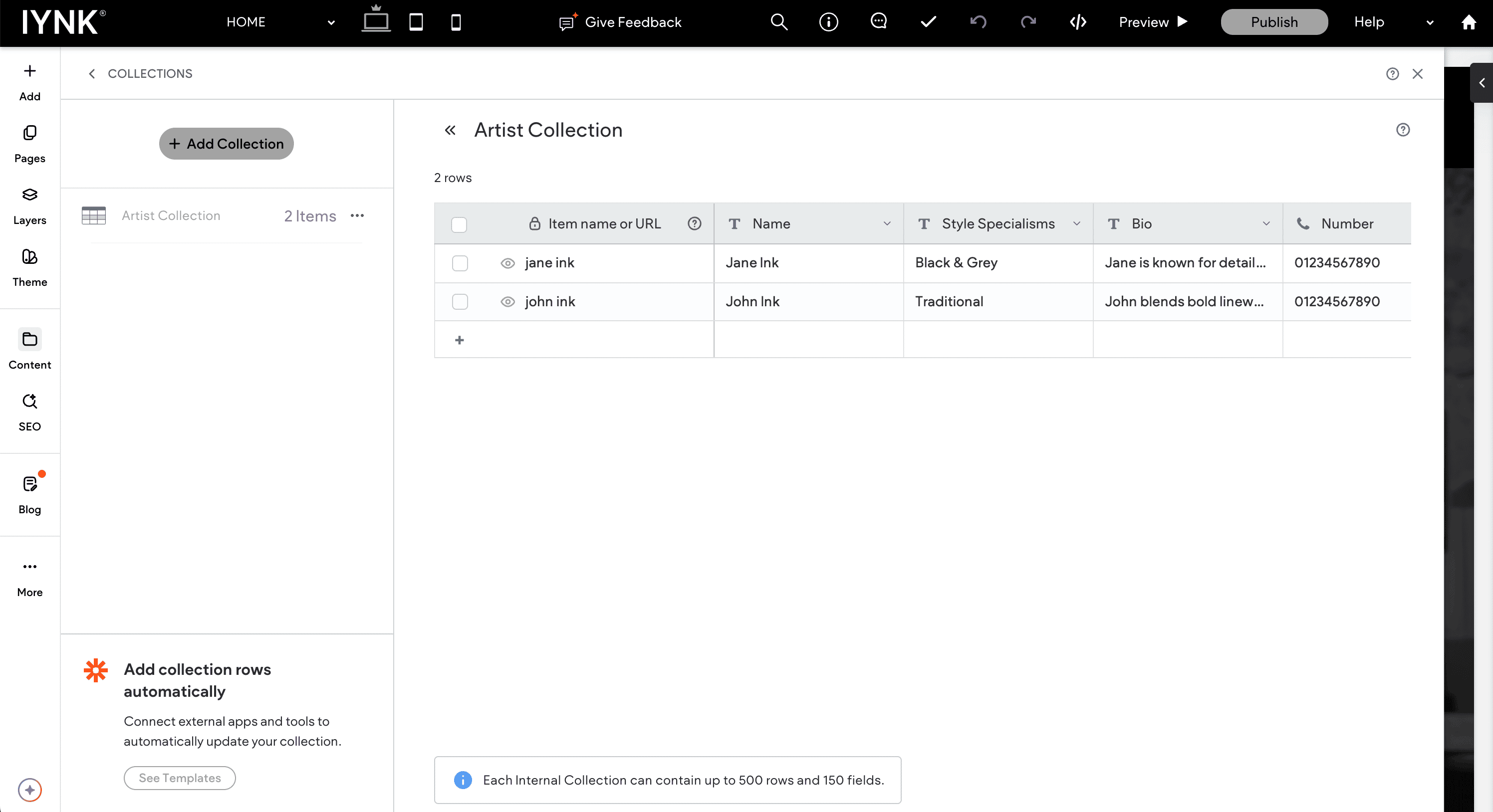
In the iynk editor, artist pages are powered by the Artist Collection. This is where you add or update each artist’s details.
Open the editor.
In the left sidebar, click Content.
Go to Collections.
Choose the Artist Collection.
Click Add Item to create a new artist.
Each item you add becomes its own artist page, automatically styled using the template.
Fill in the fields below to complete an artist’s profile. Your template will handle the rest, but don’t forget to add the new dynamic page to your navigation so clients can actually find it.
Artist Fields
• Item (lowercase name)
This becomes the page URL. “Jane Ink” becomes /jane-ink.
• Name
The artist’s full name as you want it shown.
• Style specialisms
A short tagline describing their style.
Example: Award-winning black and grey realism.
• Bio
A short backstory or introduction to help clients get to know them.
• Number
Their contact number (optional).
• Email Address
Useful for artists who manage their own enquiries.
• Profile Picture
Use the recommended size listed in the collection table. If a square image is required, it will say so.
• Tattoo Gallery
Upload high-quality images of their work.
– Convert to JPG/WEBP (click to use our recommended tool)
– Compress for speed (click to use our recommended tool)
– Avoid screenshots - they look unprofessional
– Mix healed work, close-ups and full pieces
– Update regularly for SEO
• Social Links
Link Instagram, TikTok and any platforms where clients can see more of their work.
Adding the Artist Page to Your Menus
Dynamic artist pages don’t automatically appear in your menu, you’ll need to add them manually so visitors can access them.
Follow these steps:
Desktop Navigation
Open the editor.
Click Pages, then select the page builder view.
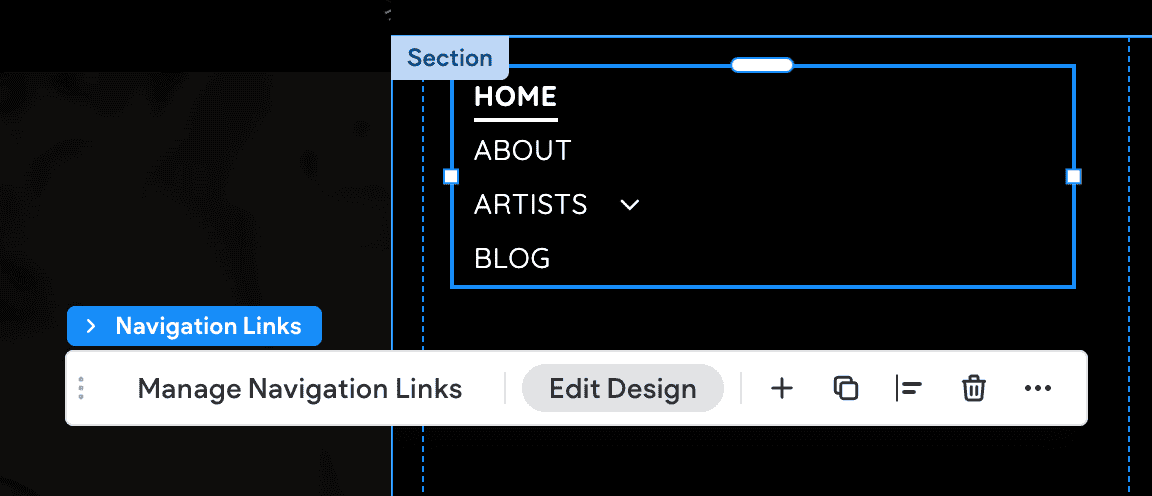
Click your navigation links (the menu).
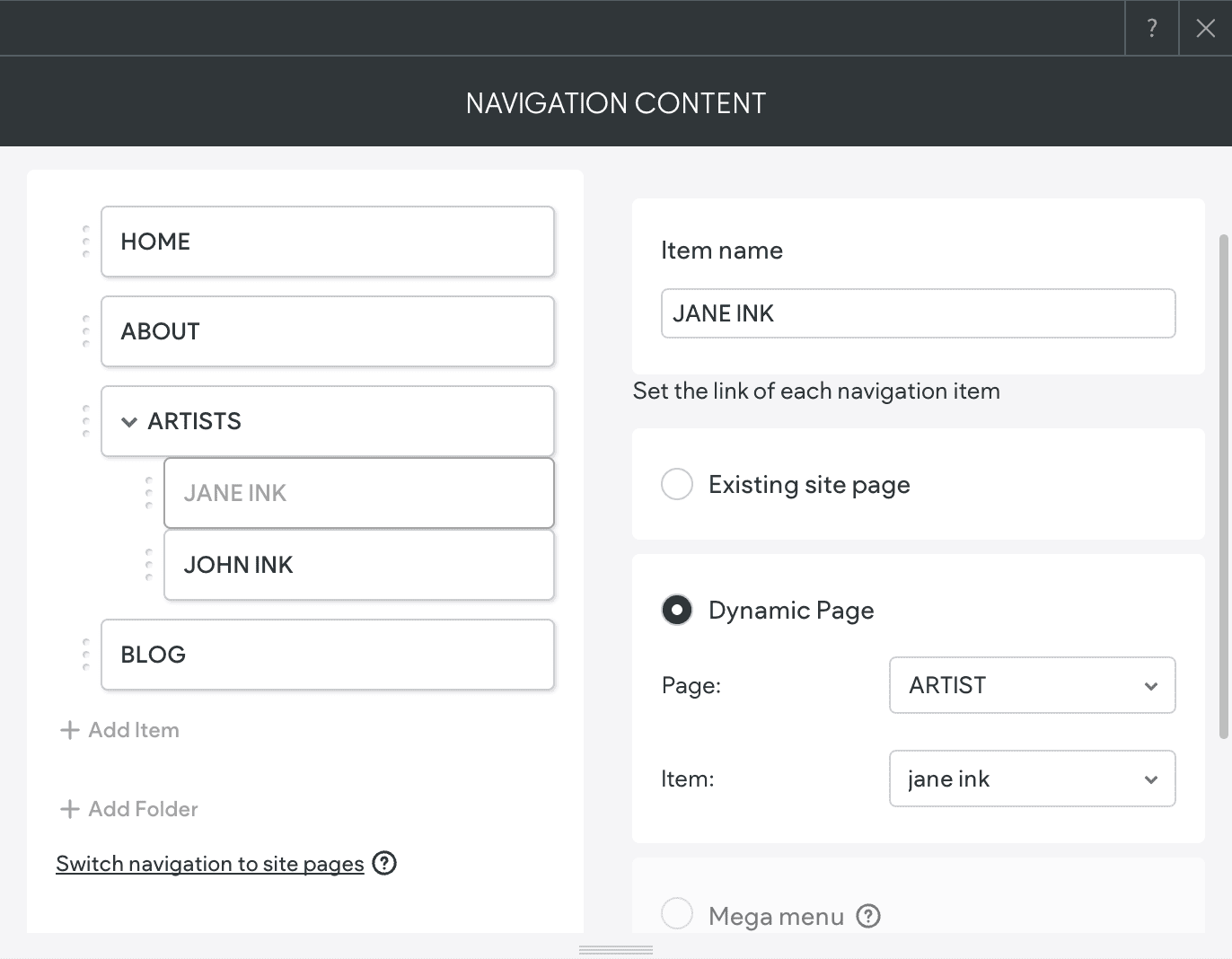
Add a new item.
Drag the new item into the “Artists” folder to keep things organised.
In the link settings, choose Dynamic Page → Artist → [Name of the Artist].
At the top of the settings panel, update the link text to match the artist’s name.
Tablet & Mobile Navigation
Tablet and mobile navigation share the same structure, but you must update them separately from desktop.
Switch to Tablet or Mobile in the top toolbar.
Click the hamburger icon.
Click Open Menu.
Click into Navigation Links again.
Repeat the same steps: add the item → drag it into the Artists folder → set it to the artist’s dynamic page → name it correctly.
Footer (Optional)
If you want artist profiles in your footer:
Click the footer.
Click into the footer navigation links.
Add and link the artist page in the same way as above.
Republish the site for the changes to go live.
Once everything’s added and linked, your artist pages will stay consistent and update automatically as your team grows and changes.